
Domains
Give your blog a professional home. Set up custom domains to host your content on your own domain name, creating a branded experience that builds trust and improves SEO.
Custom domains provide automatic SSL certificates, global CDN, and professional branding while maintaining all of Waldium's powerful content management features.
Why Use Custom Domains?
Custom domains transform your blog from a subdomain into a professional website that reflects your brand. Instead of yoursite.waldium.app, you can use blog.yourcompany.com or host at yourcompany.com/blog.
What custom domains enable:
- Professional branding - Use your own domain name for credibility and trust
- Better SEO - Custom domains improve search engine rankings and link authority
- Brand consistency - Align your blog with your main website and marketing materials
- Automatic infrastructure - SSL certificates, CDN, and global deployment included
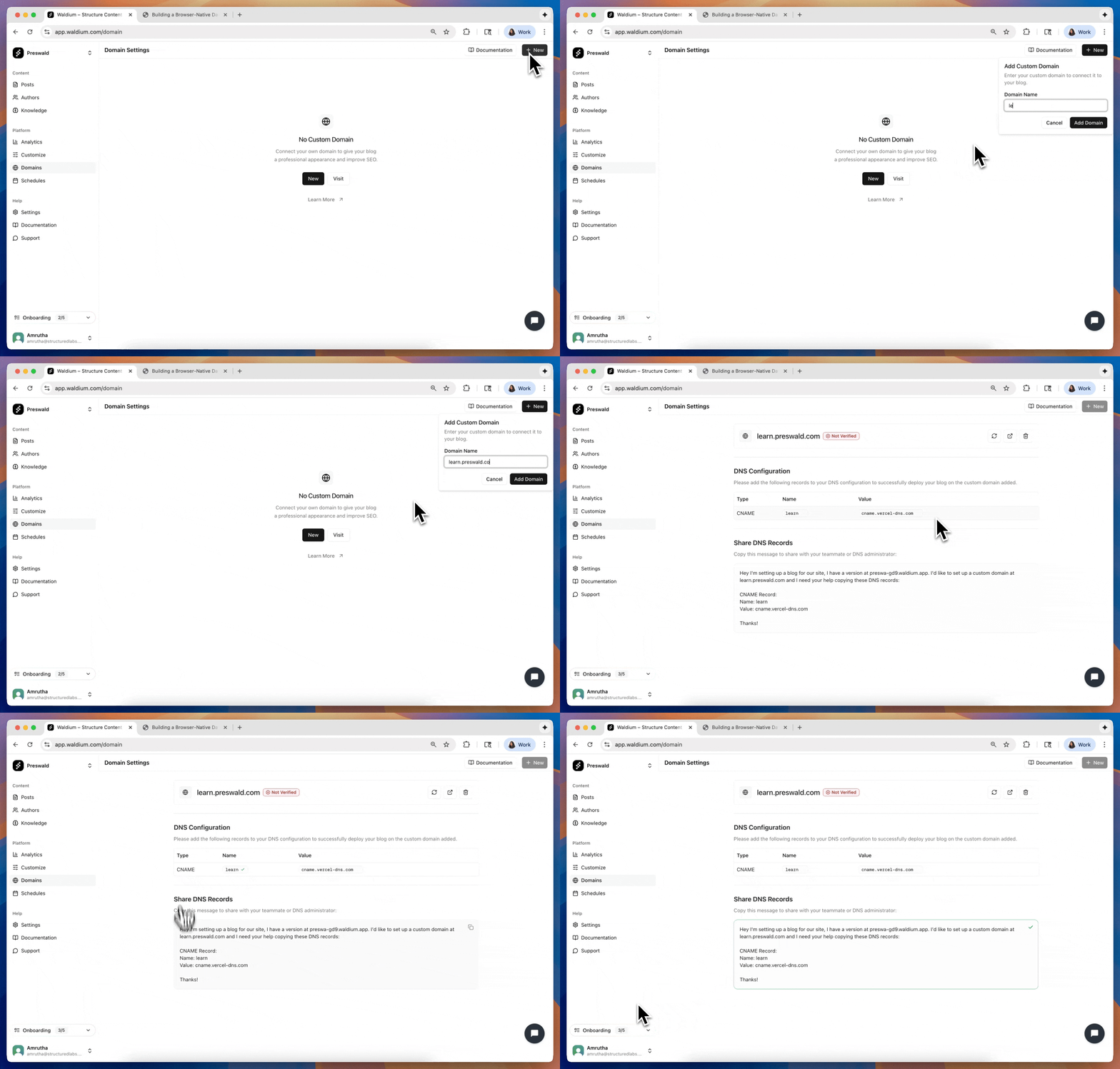
Accessing Domain Settings
- Navigate to Domains - Go to your dashboard and click on "Domains" in the settings
- View current status - See if you have a custom domain configured or need to add one
- Add new domain - Enter your full domain (e.g.,
blog.yoursite.com), optionally enable subpath hosting, and click "Connect Domain"
Hosting Modes
Waldium supports two hosting modes:
- Name
Subdomain- Description
Host your blog on a subdomain like
blog.yoursite.com. Waldium handles DNS and SSL automatically. This is the simplest setup — just add a CNAME record.
- Name
Subpath- Description
Host your blog at a path like
yoursite.com/blog. Your blog lives on your main domain, which is great for SEO. Requires configuring a reverse proxy on your infrastructure. Enable this by checking the "Use the subpath /blog" checkbox when adding your domain.
Adding a Custom Domain
- Enter your domain - Type the full domain you want your blog hosted on (e.g.,
blog.yourcompany.com) in the domain field. A preview above the field shows exactly what will be configured. - Optionally enable subpath hosting - Check the "Use the subpath /blog" checkbox if you want your blog hosted at a subpath (e.g.,
yourcompany.com/blog). The preview updates to reflect this. - Click "Connect Domain" - Waldium will add the domain to your configuration.
Domain Name Examples
Subdomain — Enter the full subdomain you want to use:
- Enter
blog.yourcompany.com→ blog is hosted atblog.yourcompany.com - Enter
news.yourdomain.com→ blog is hosted atnews.yourdomain.com
Subpath — Enter your domain and check "Use the subpath /blog":
- Enter
yourcompany.comwith subpath enabled → blog is hosted atyourcompany.com/blog - Enter
yourdomain.comwith subpath enabled → blog is hosted atyourdomain.com/blog
DNS Configuration (Subdomain)
When using subdomain hosting, Waldium provides DNS records that you need to configure with your domain provider.
Understanding DNS Records
CNAME Records:
- Used for subdomains (e.g., blog.yourcompany.com)
- Points your subdomain to Waldium's servers
- Most common setup for custom domains
A Records:
- Used for root domains (less common)
- Points your domain directly to an IP address
- Requires specific IP configuration
Verification Records:
- Proves you own the domain
- Required for SSL certificate generation
- Automatically provided by Waldium
TTL Settings:
- Time-to-live for DNS records
- Usually set to 3600 seconds (1 hour)
- Can be adjusted based on your needs
Configuring DNS Records
- View DNS Records - DNS records are automatically displayed after you connect a subdomain
- Copy each record - Use the copy buttons to copy record values
- Add to your DNS provider - Log into your domain registrar and add these records
- Wait for propagation - DNS changes can take up to 48 hours to propagate
Common DNS Providers
Popular Domain Registrars:
- GoDaddy - Navigate to DNS Management in your account
- Namecheap - Go to Advanced DNS settings
- Cloudflare - Use the DNS tab in your dashboard
- Google Domains - Access DNS settings in your domain management
- Route 53 - Use the hosted zone for your domain
Subpath Setup
When using subpath hosting, you need to configure your infrastructure to proxy /blog requests to Waldium. After connecting your domain, the setup card shows provider-specific guides:
- Vercel - Use rewrites in your
vercel.jsonornext.config - Cloudflare Workers - Proxy
/blogtraffic using a Cloudflare Worker - Nginx / Reverse Proxy - Configure a reverse proxy with location blocks
- AWS CloudFront - Set up a CloudFront distribution with origin routing
For detailed instructions, see Subpath Hosting.
Domain Management
Viewing Your Domain
Once configured, your domain settings page shows:
- Domain name - Your custom domain with a clickable link to visit it
- Hosting type - Badge showing whether you're using subdomain or subpath hosting
- Status - Whether your domain is Live or Not Configured
- Management options - Refresh status, remove domain, access documentation
Status Indicators
- Live (Green) - Domain is properly configured and serving content
- Not Configured (Gray) - DNS records need to be configured (subdomain) or proxy setup is pending (subpath)
Refreshing Status
- Click "Refresh Status" - Manually check your domain configuration
- Automatic checks - System periodically verifies your domain configuration
Domain Verification
How Verification Works
- DNS Propagation - Wait for DNS changes to propagate (up to 48 hours)
- Automatic Checks - Waldium periodically verifies your domain
- SSL Generation - SSL certificates are automatically provisioned
- Content Serving - Your blog becomes available on your custom domain
Domain Removal
Removing a Custom Domain
If you need to remove your custom domain:
- Access domain settings - Go to your domain management page
- Click "Remove" - Use the remove button next to your domain
- Confirm removal - Confirm you want to remove the domain
- Revert to subdomain - Your site will return to
yoursite.waldium.app
What Happens When You Remove
Immediate Effects:
- Domain removed from Waldium configuration
- DNS records no longer managed by Waldium
- Site reverts to default subdomain
- SSL certificate for custom domain is removed
Your Responsibility:
- Remove DNS records from your domain provider
- Update any links pointing to the custom domain
- Notify users of the domain change